

A Comprehensive Guide to Managing Your Creative Assets with Workspaces
This tutorial will guide you through the process of discovering, downloading, and managing digital assets using workspaces. By following these steps, you'll learn how to effectively organize your projects and collaborate with others.
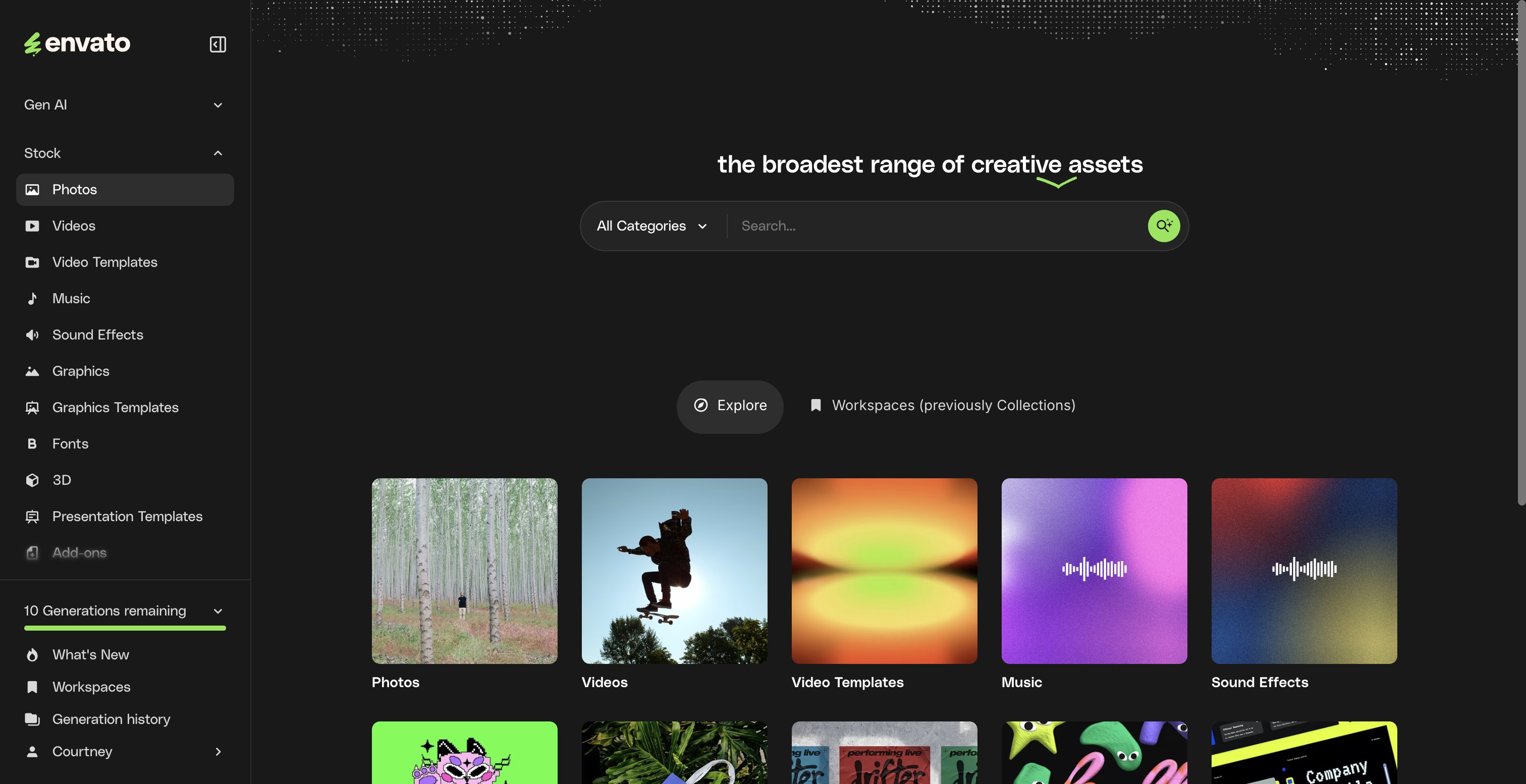
Step 1: Open the Categories Menu
Begin by clicking on the green 'Explore' button located at the top left of the screen. This button opens the categories menu, allowing you to discover various types of digital assets available for your projects.
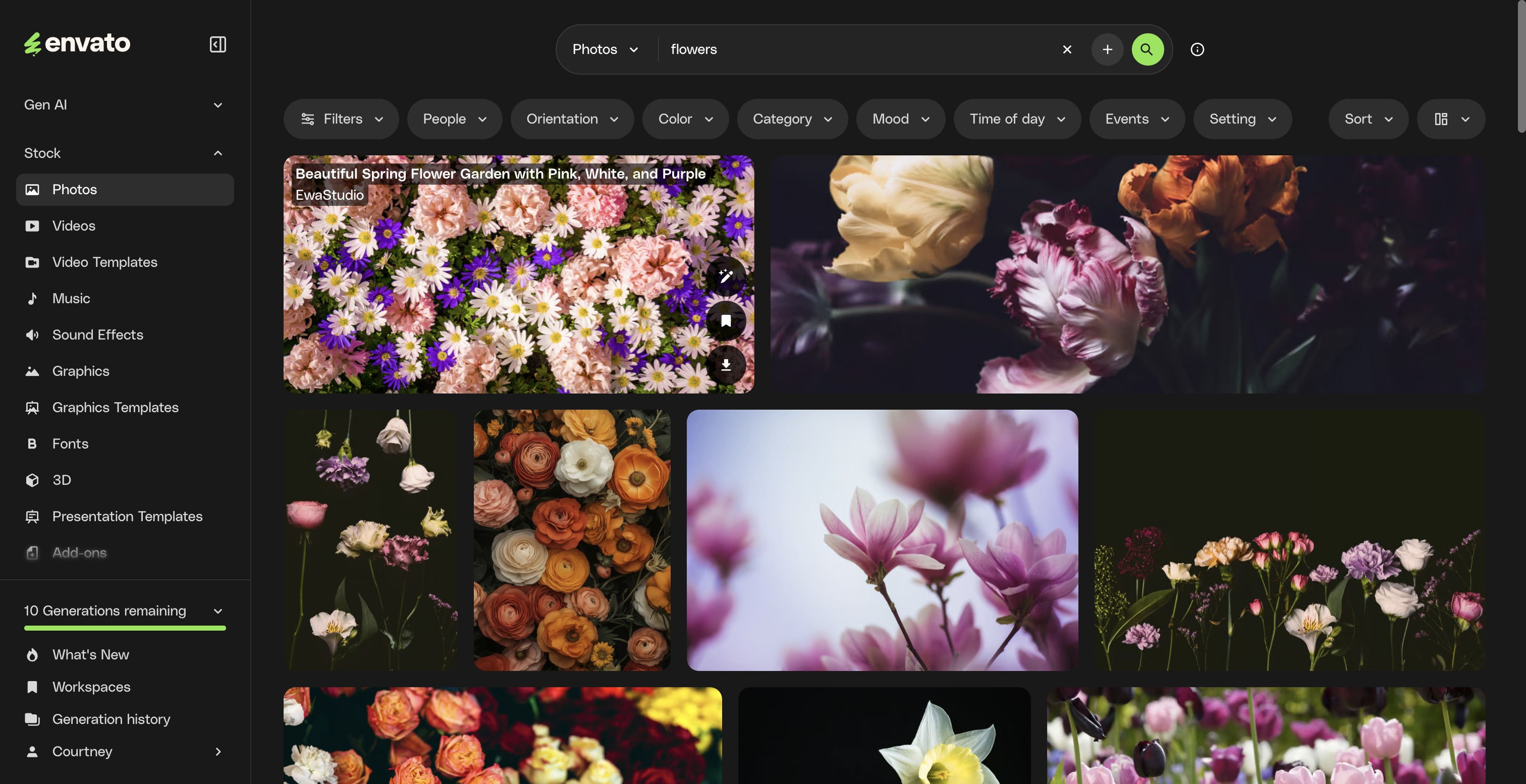
Step 2: Access the Filters Menu
Next, click on the 'Filters' button at the top of the filters menu. By doing this, you can refine your search results based on specific criteria, making it easier to find the images you need.
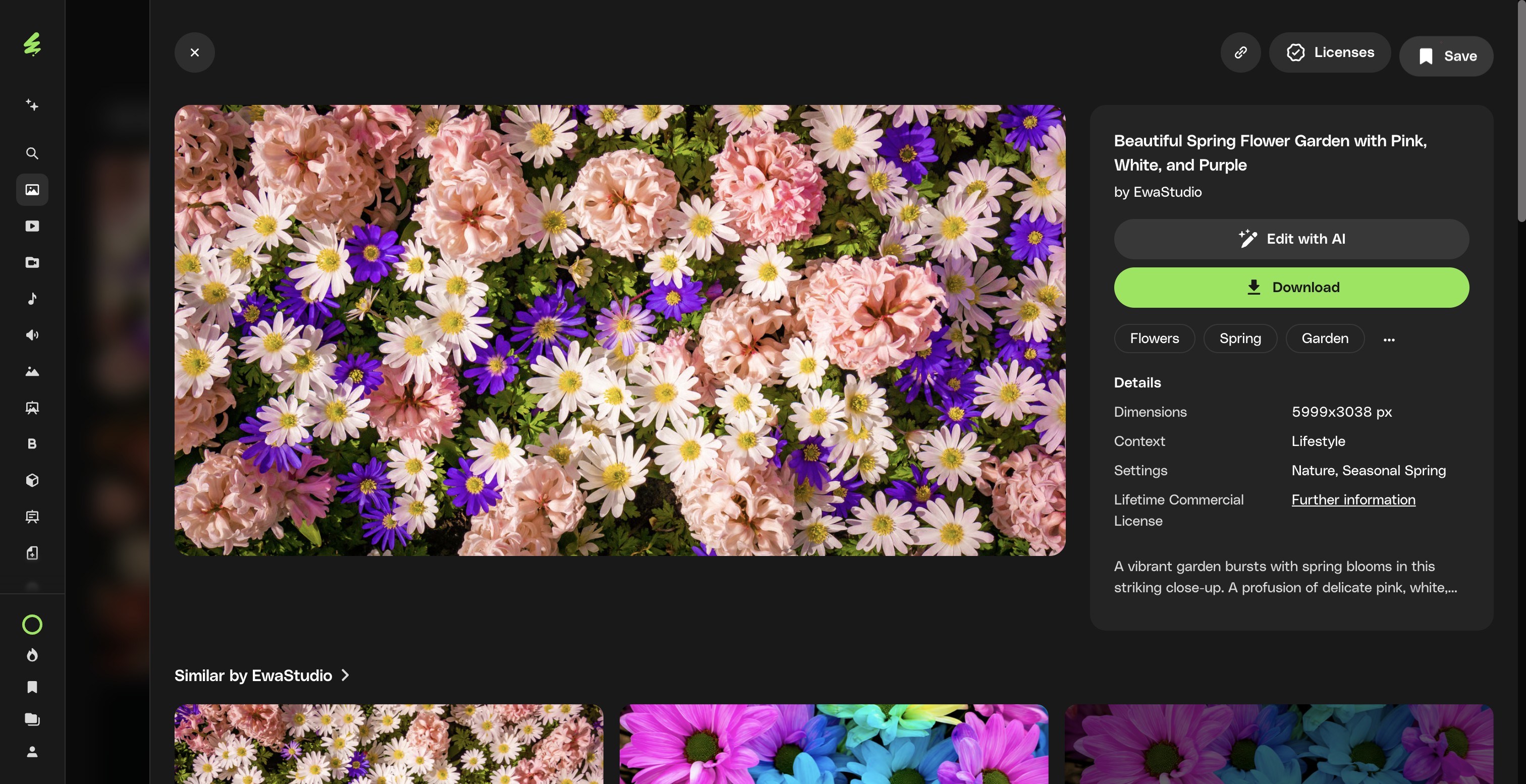
Step 3: Download the Selected Image
Click on the green 'Download' button to obtain the selected image for your creative use. This button is prominent and located next to the asset details on the right side of the screen.
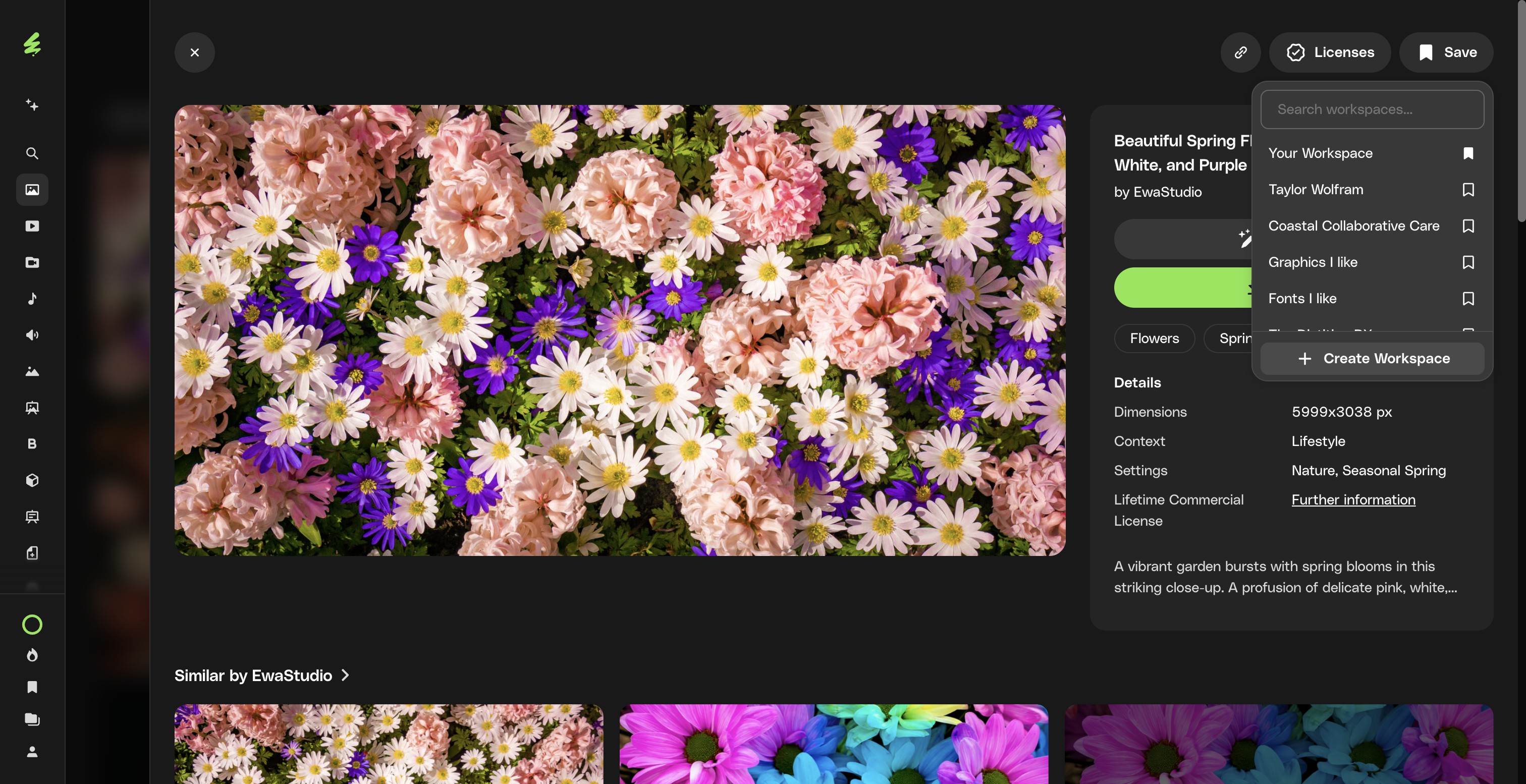
Step 4: Select Workspace Options
Choose from the various workspace options by clicking the dropdown to organize and manage your downloaded assets effectively. This action will help streamline your asset management process.
Step 5: Create a New Workspace
Click on the 'Create' button to set up a new workspace. This button can be found at the top right corner of the screen under your workspace options, allowing for better asset management and collaboration among team members.
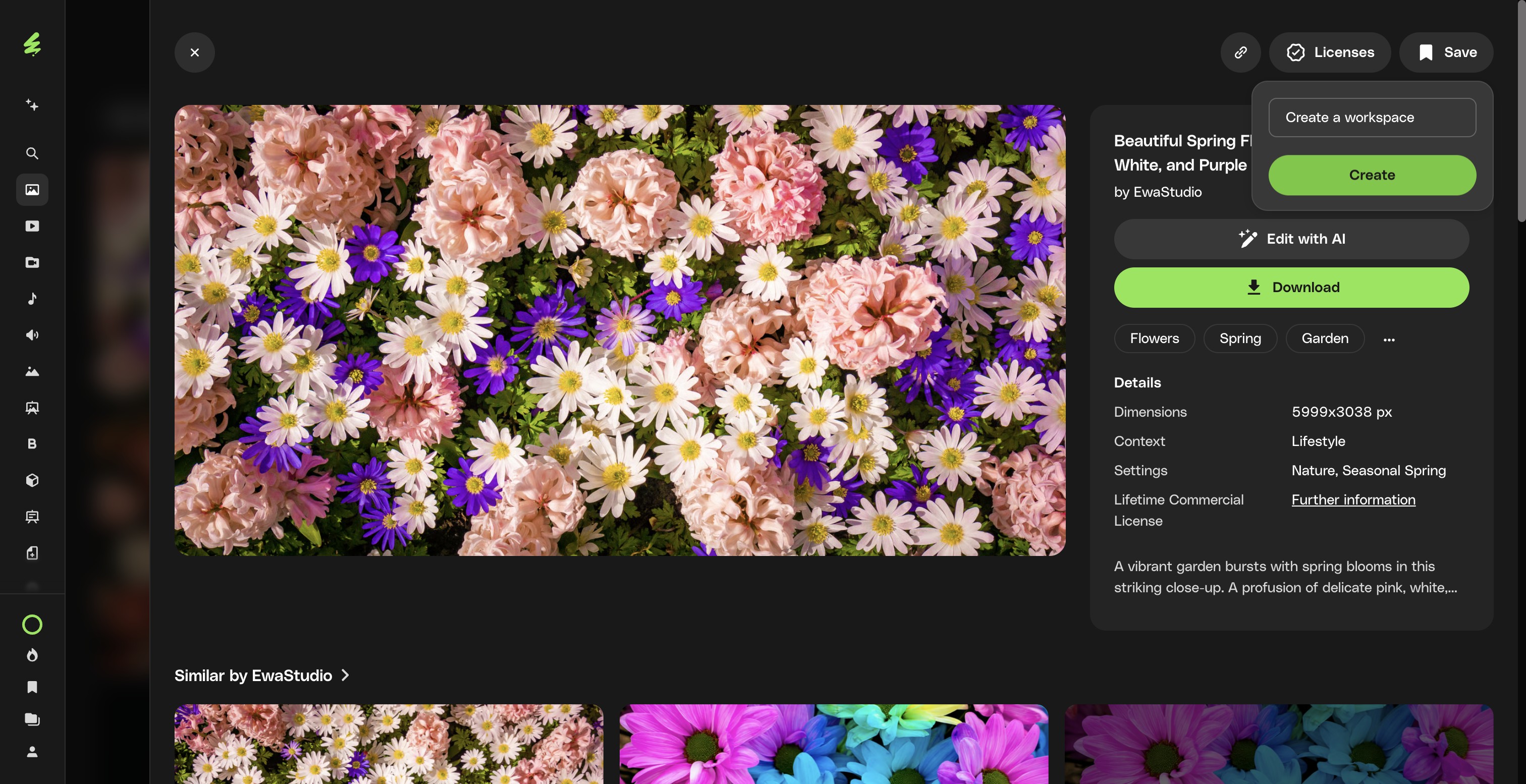
Step 6: Download Another Digital Asset
Start once again by clicking the green 'Download' button for the selected digital asset. It's essential to repeat this step for each asset you wish to save for your projects.
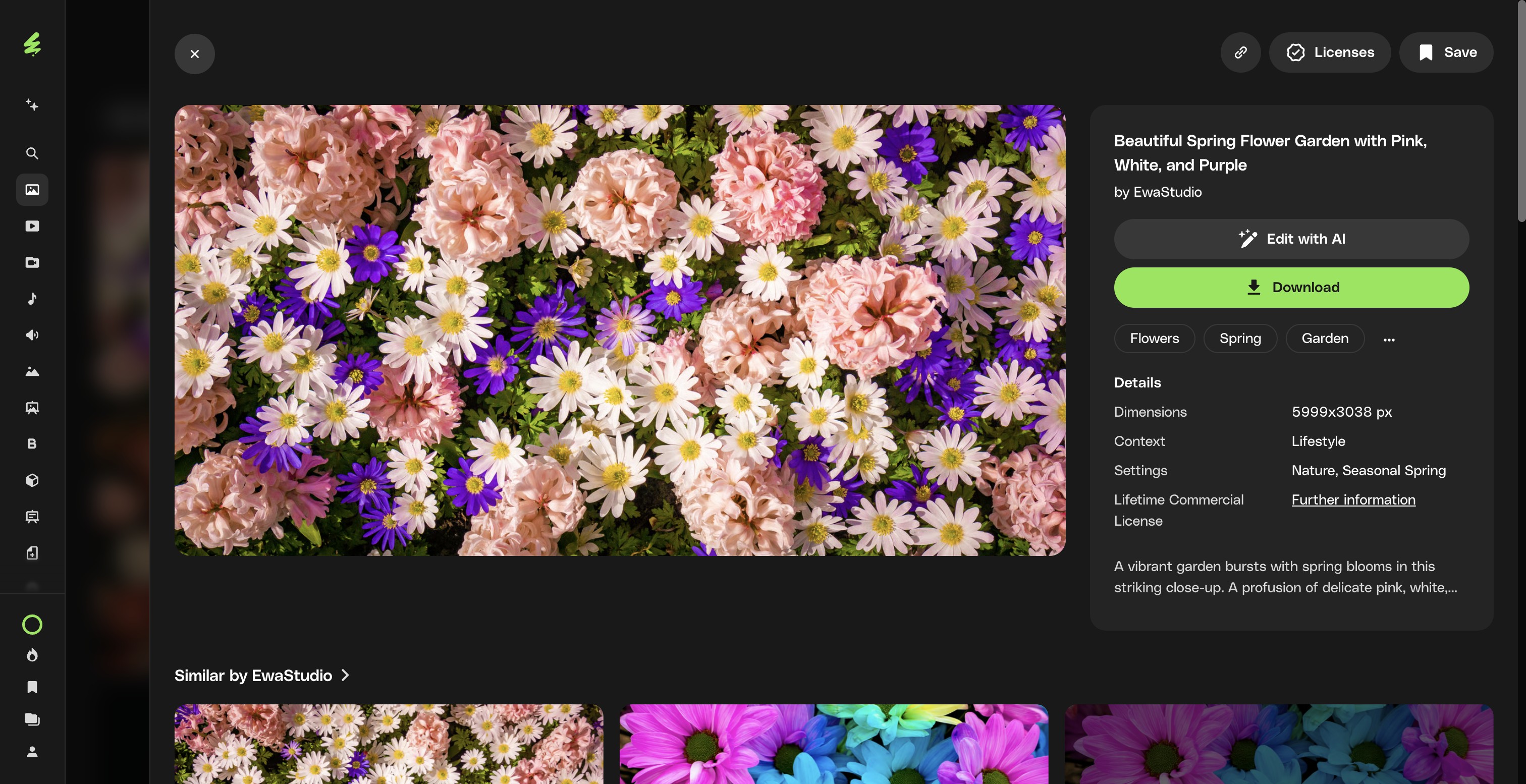
Step 7: Save the Asset to Your Workspace
Next, click the 'Save to Workspace' icon to ensure the digital asset is saved for later access. This icon is key to managing your collection of assets within your workspace.
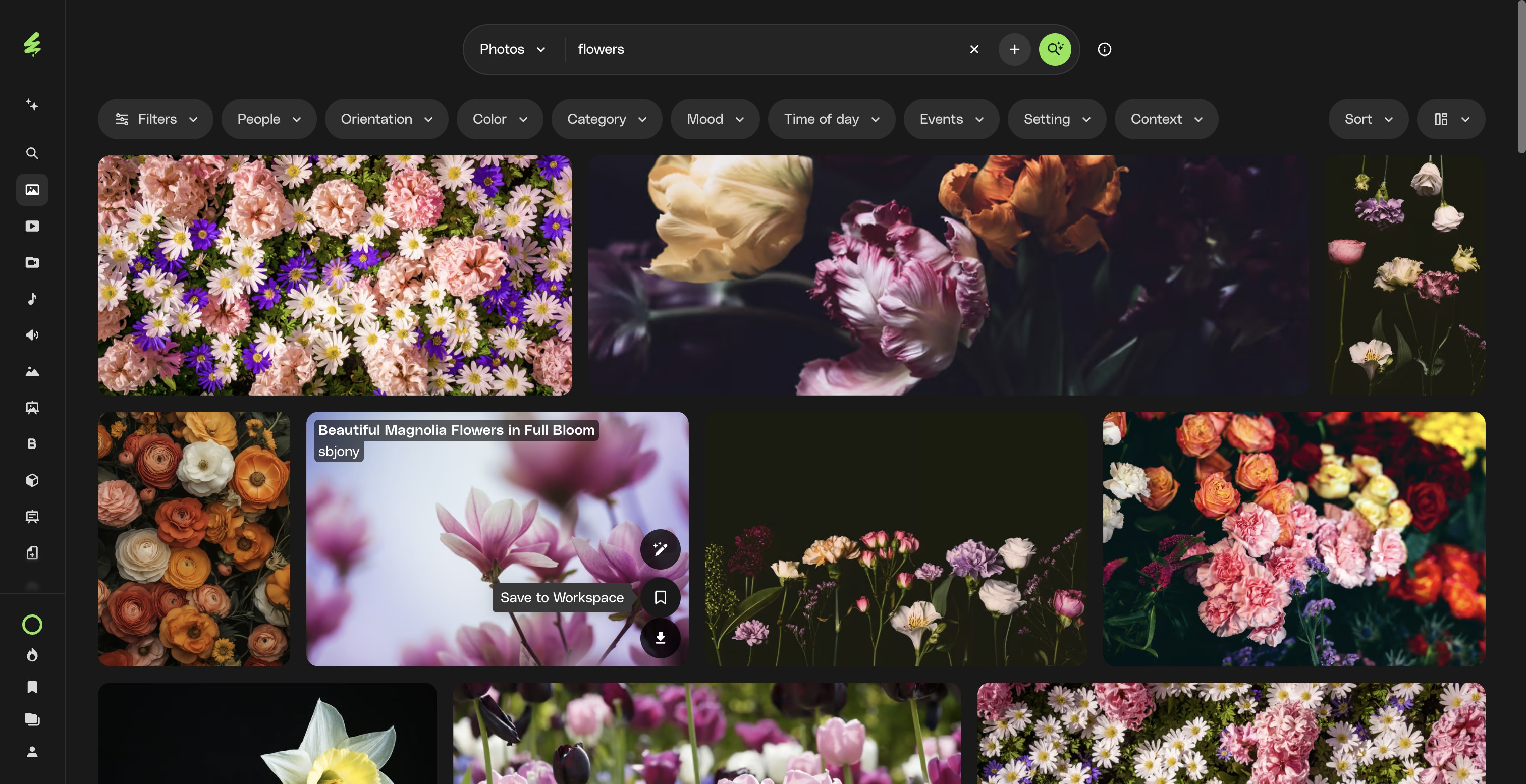
Step 8: Choose 'Save to Workspace'
From the dropdown menu, select 'Save to Workspace' to organize your assets. This option will allow you to choose which workspace you want to use, ensuring an efficient organization of your materials.
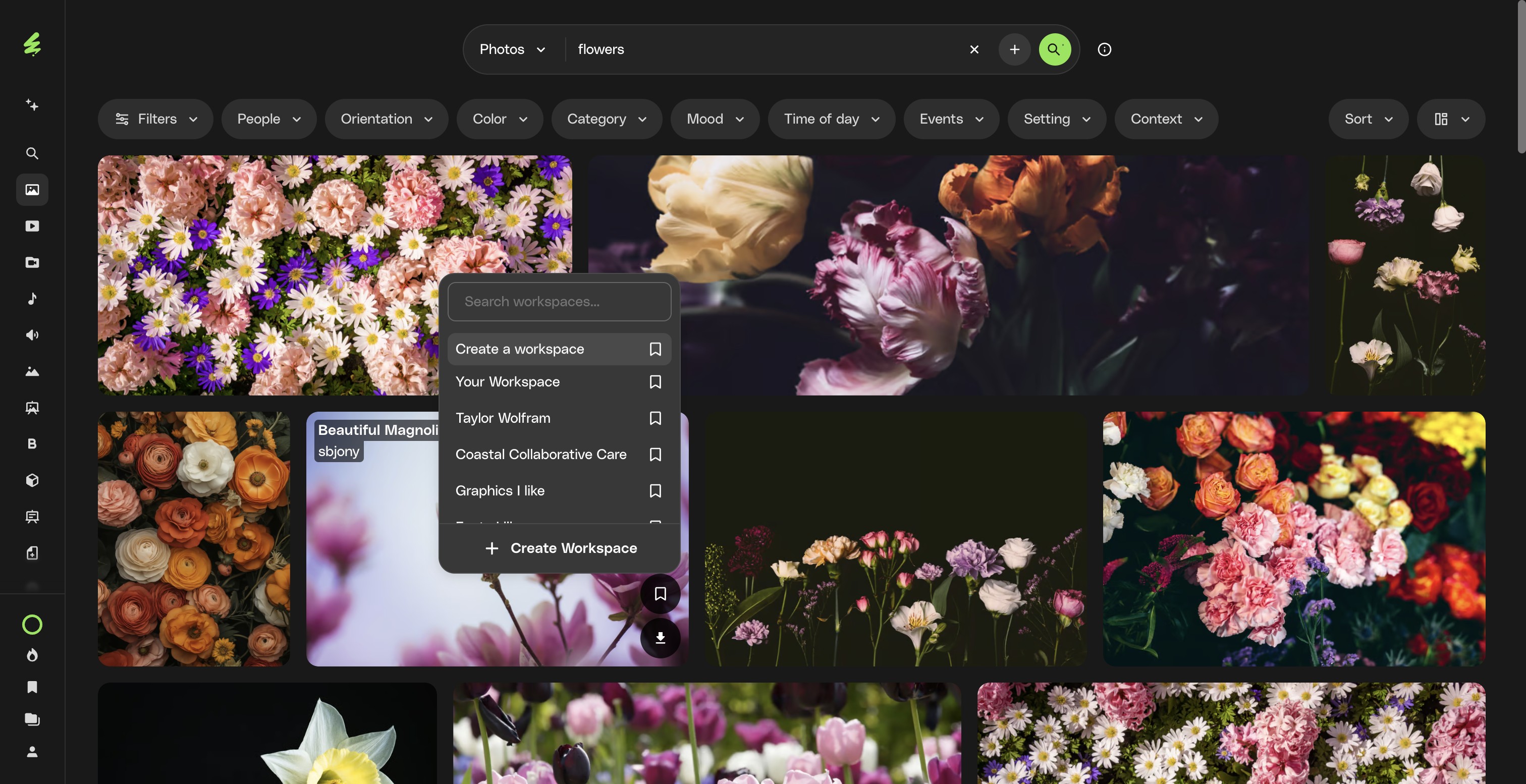
Step 9: Search for Your Workspace
Type your workspace name into the designated search box to find or manage your assets. This feature helps you quickly locate specific workspaces you have created.
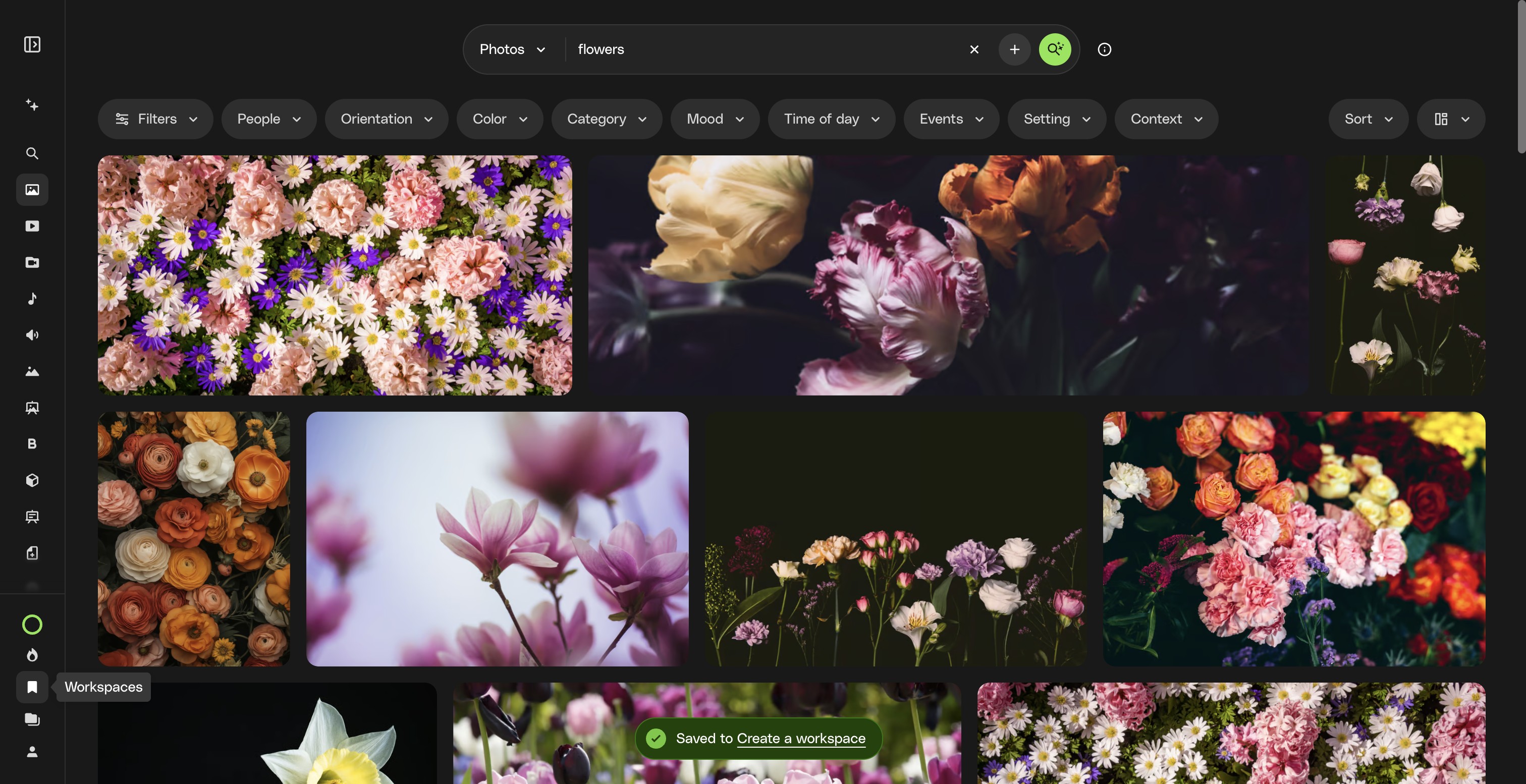
Step 10: Create the Workspace
Finally, click the green 'Create Workspace' button to set up your new area for organizing and managing your creative assets effectively. This is an important step in maintaining order in your projects.

Step 11: Open the Dashboard
Begin by opening the dashboard and selecting the option to create a new workspace. This step sets the foundation for your asset management process.

Step 12: Select the Desired Workspace
Click on the desired workspace from the list to manage its options. This action enables you to customize settings and further organize your assets.

Step 13: Share the Workspace
Click the 'Share' button to configure link-sharing preferences. This option allows you to collaborate with others securely by sharing access to your workspace.

Step 14: Allow Link Sharing
Enable link sharing by checking the appropriate box. This will allow others to access your workspace, making it easier to collaborate on projects.

Tips & Best Practices
Regularly update your workspace to keep your assets organized and accessible.
Utilize filters effectively to quickly find specific assets you need.
Consider naming conventions for your workspaces to enhance searchability.
Make use of sharing features to collaborate with teammates smoothly.
Quick Reference Table
StepAction1Open the categories menu2Access the filters menu3Download the selected image4Select workspace options5Create a new workspace6Download another digital asset7Save the asset to your workspace8Choose 'Save to Workspace'9Search for your workspace10Create the workspace11Open the dashboard12Select the desired workspace13Share the workspace14Allow link sharing In conclusion, you've learned how to navigate through the process of discovering, downloading, and effectively managing your digital assets using workspaces. By following these steps, you can enhance your asset organization and collaboration efforts.